Step-by-step Brainiak guide

How can we help?

Find clear instructions for EdWise courses, Brainiak headband setup, student reports, revision tools, and instructor insights.

Official resources

Choose the guide for your role

Download the complete student or instructor guide, or watch the platform walkthrough.

Student User Guide

17 pages

Covers login, dashboard navigation, profile and password settings, Brainiak mode, courses, pre-tests, headband connection, session reports, and Revision Stream.

Instructor User Guide

7 pages

Covers instructor login, dashboard and profile settings, Brainiak mode, AI Assistant Sally, and Instructor Corner performance visualizations.

1 min 40 sec

Brainiak video walkthrough

Watch a quick overview of the Brainiak experience and follow along before starting your first learning session.

Download video
01

Getting started

Sign in and open your dashboard

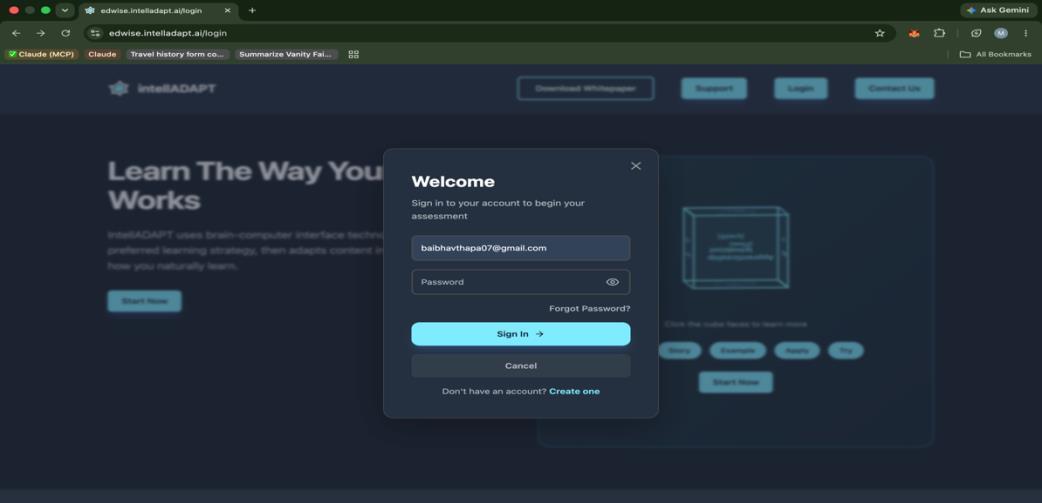
  1. 1. Open EdWiseGo to edwise.intelladapt.ai.
  2. 2. Log inSelect Log In and enter your assigned credentials.
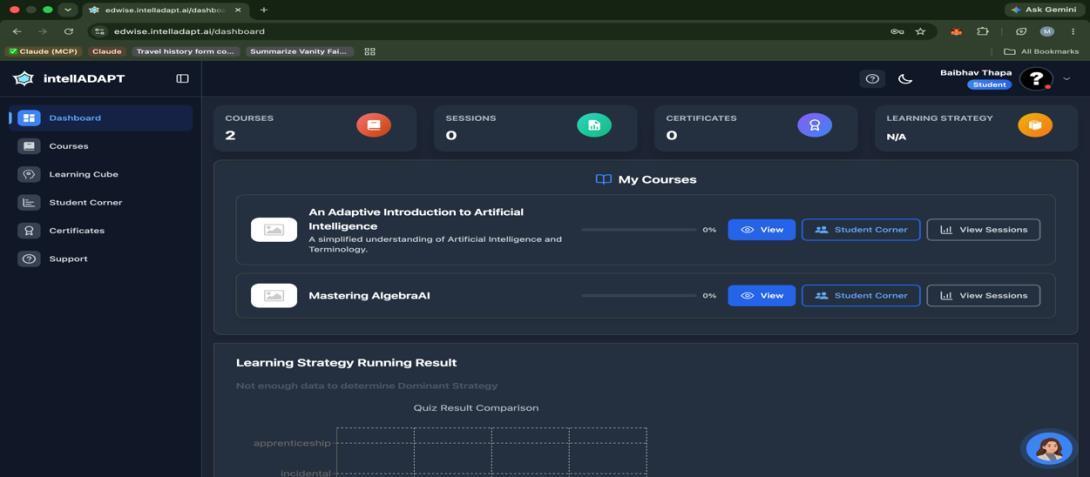
  3. 3. View dashboardAfter authentication, EdWise redirects you to the dashboard.
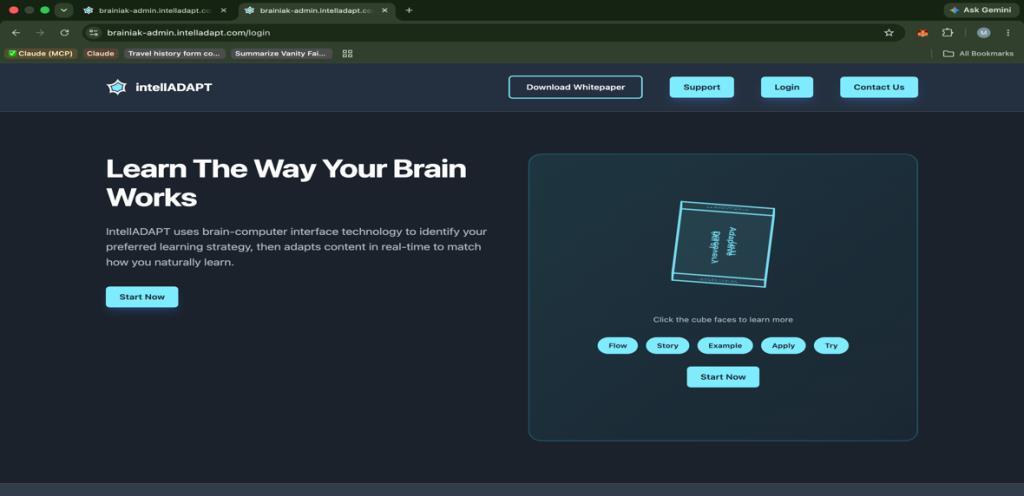
EdWise login screen
Open EdWise
EdWise login form
Enter your credentials
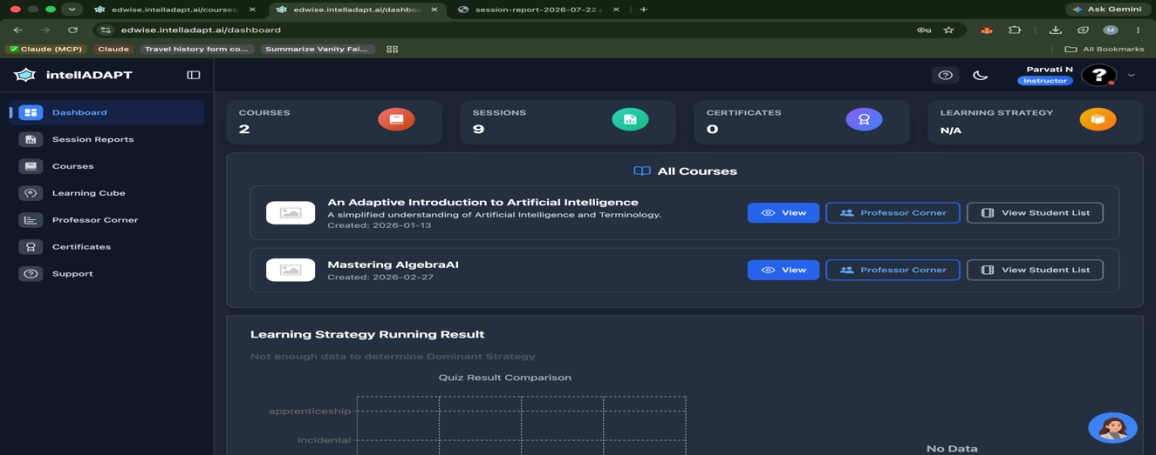
EdWise dashboard
Arrive at the dashboard
02

Account setup

Update your profile and enable Brainiak mode

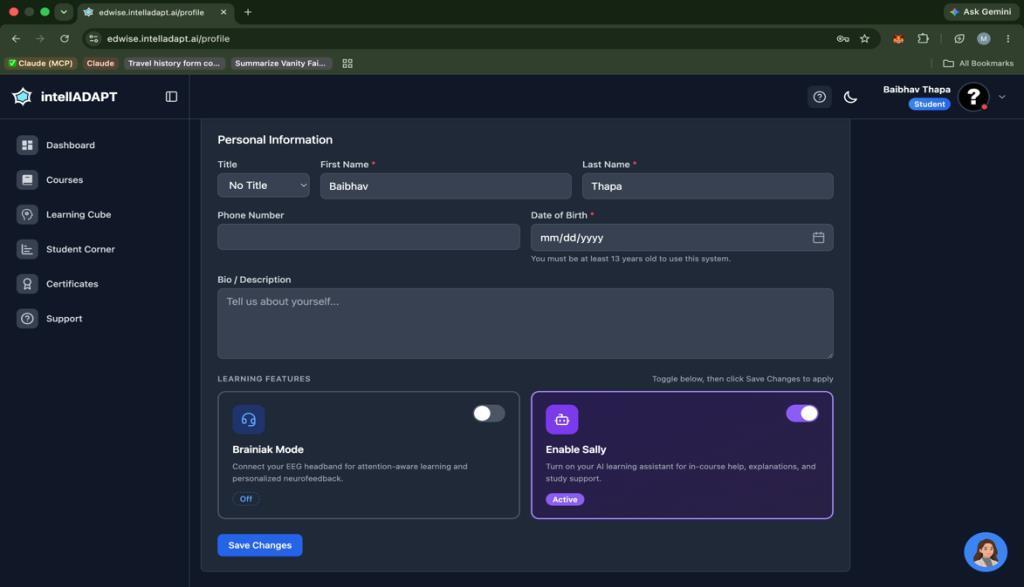
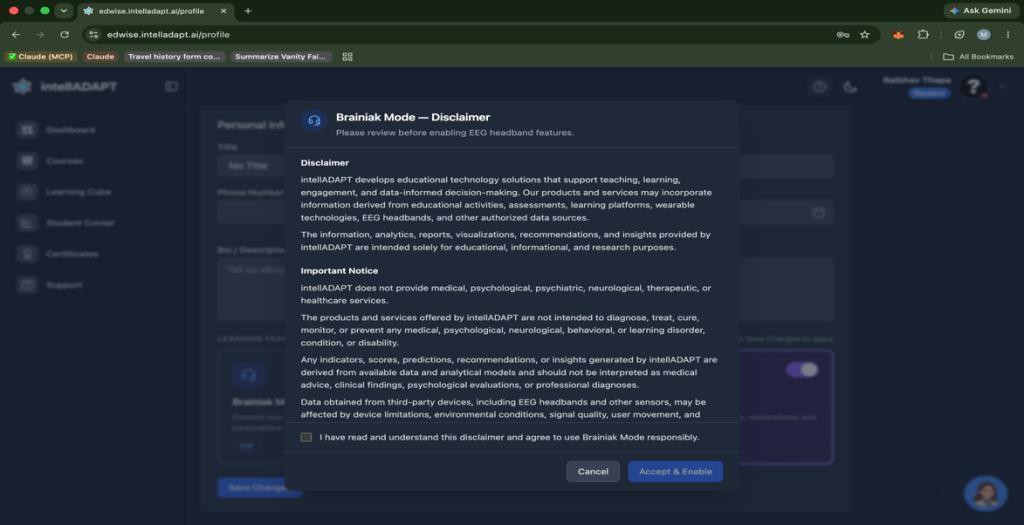
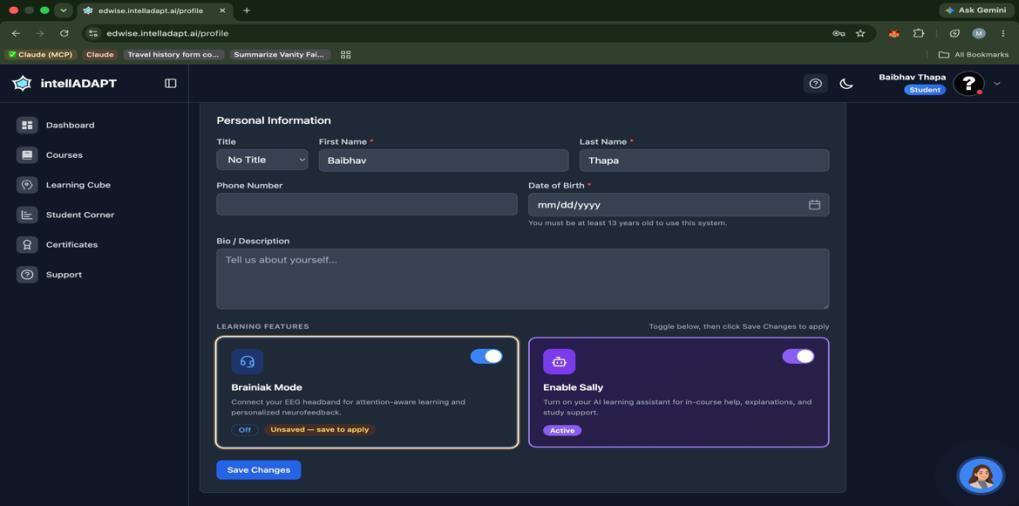
Open your profile from the navigation menu. You can update your password and switch on Brainiak mode, which enables headband connectivity during supported learning sessions.

Enable Brainiak mode before opening the course in which you want to use the headband.
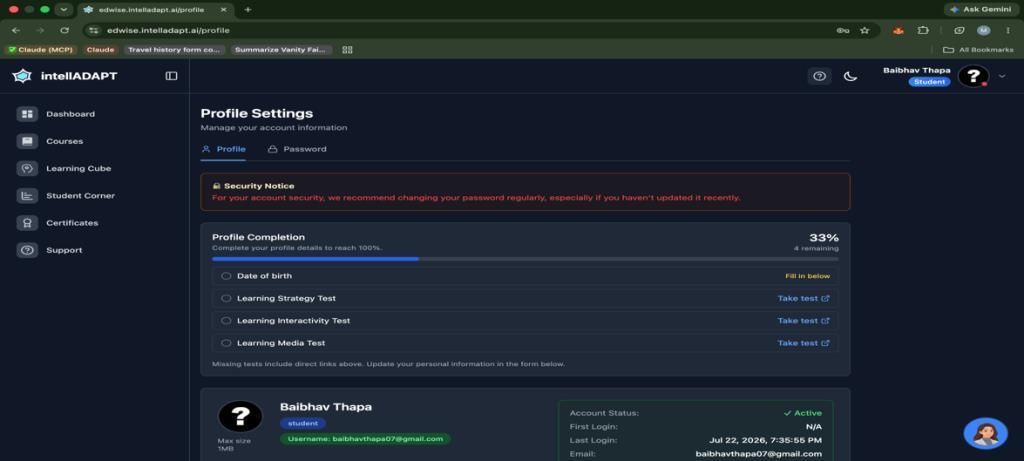
Profile menu
Open Profile
Profile settings
Update account details
Brainiak mode setting
Turn on Brainiak mode
03

Student Corner

Complete your strategy test and start a course

1

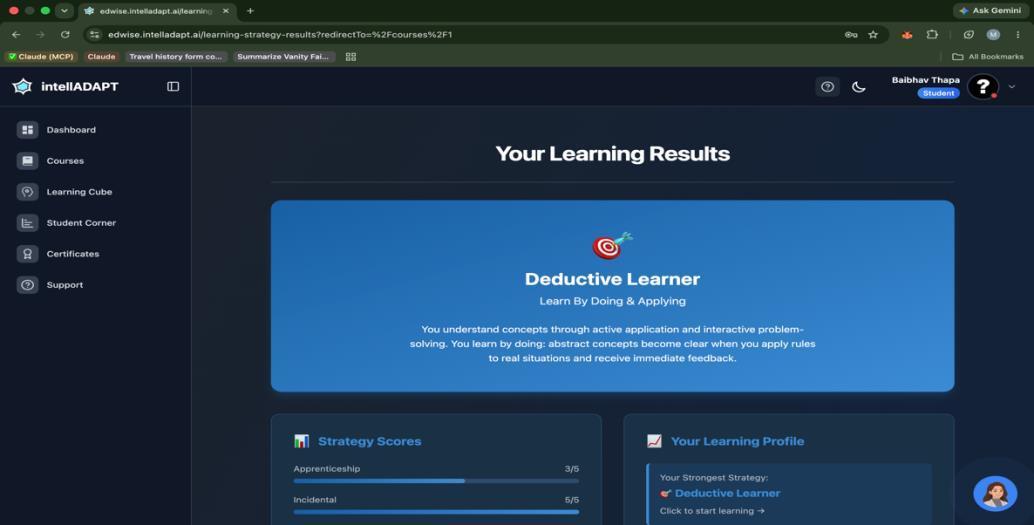
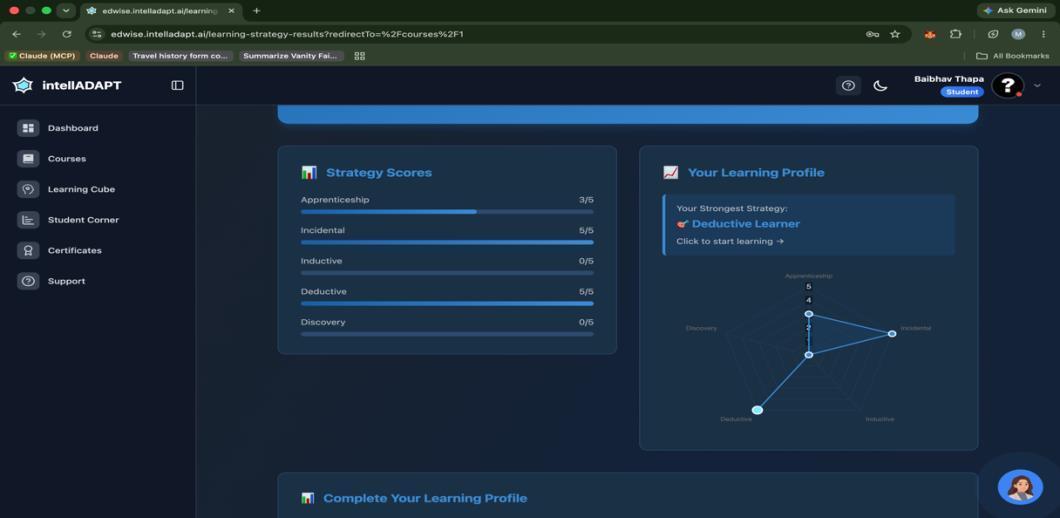
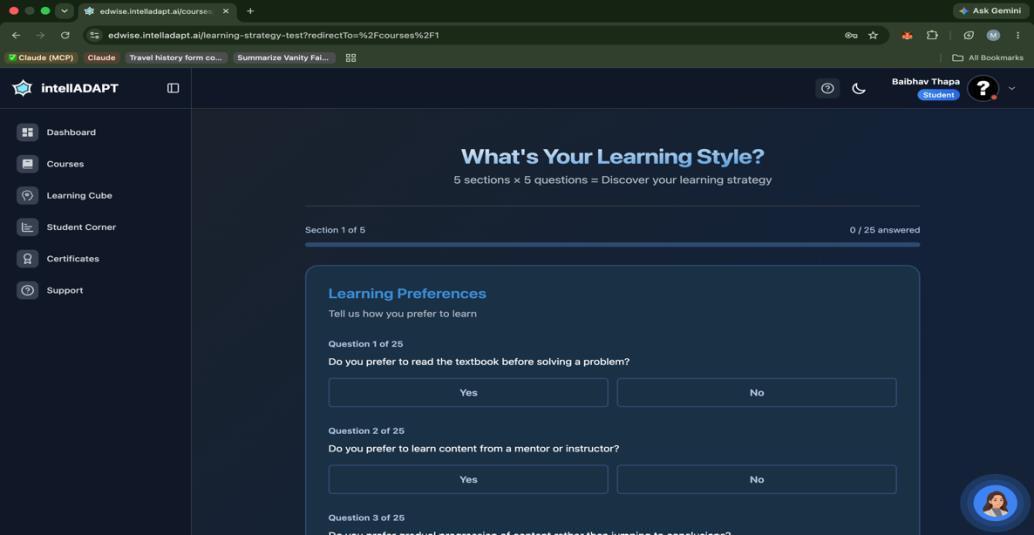
Select Courses. First-time users are redirected to the Learning Strategy Test.

2

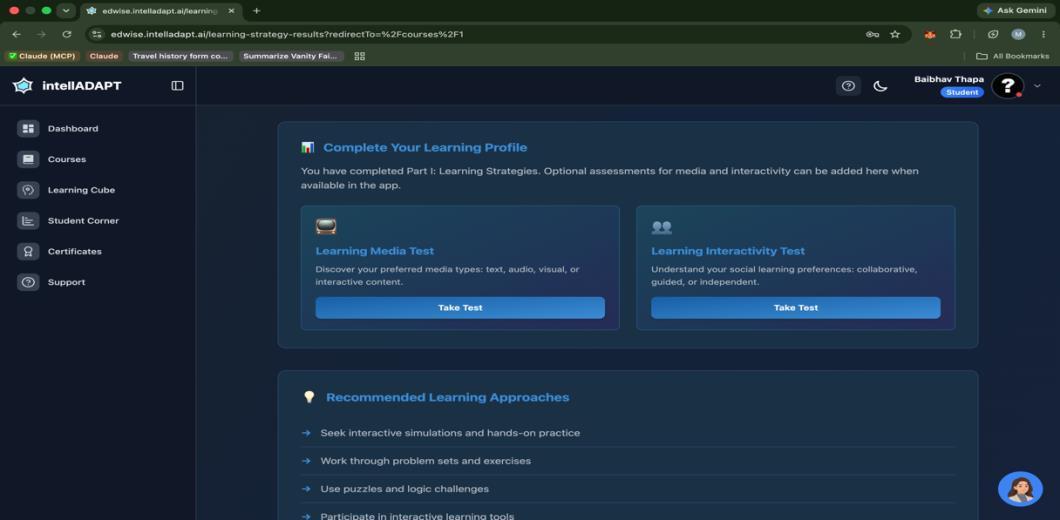
Complete the assessment so EdWise can identify your learning strategy.

3

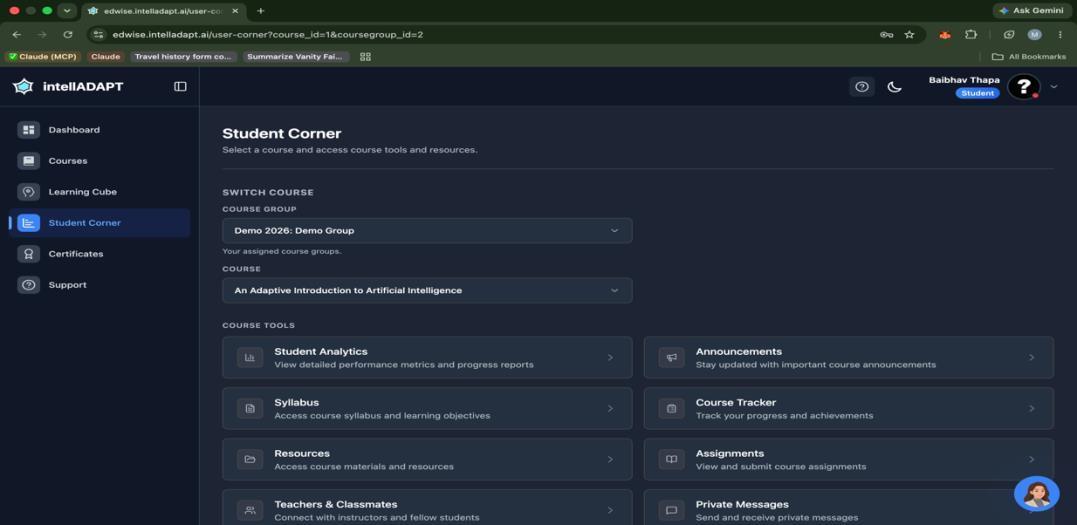
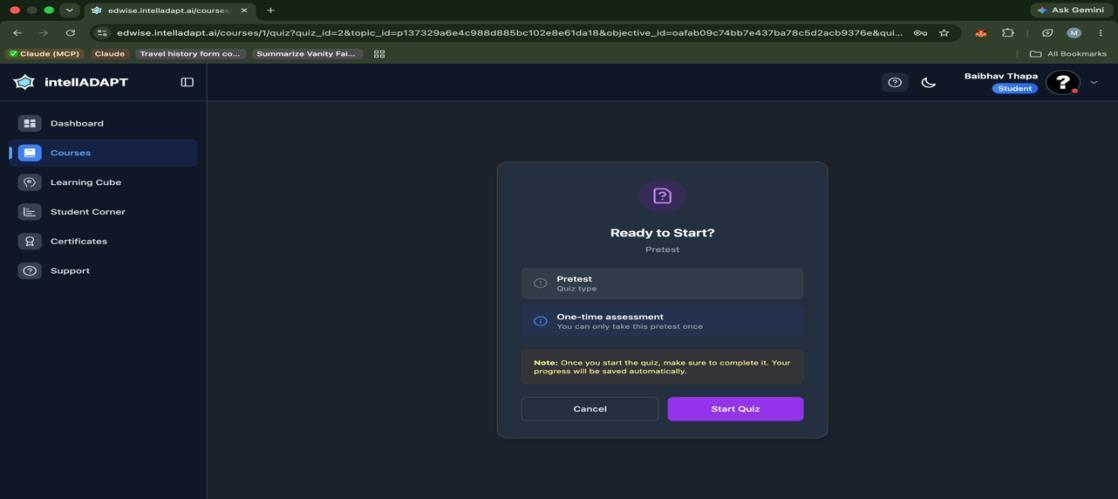
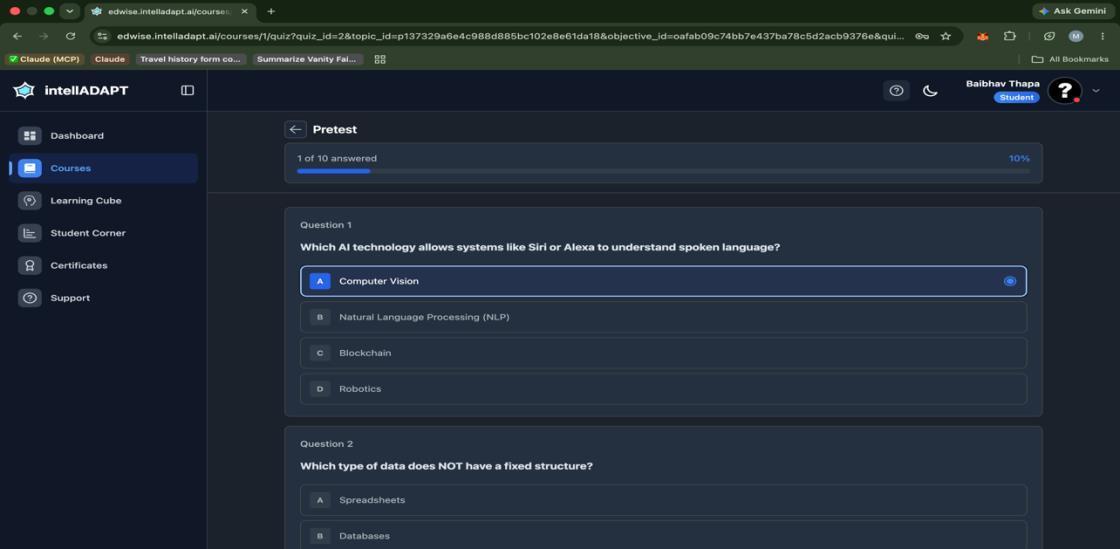
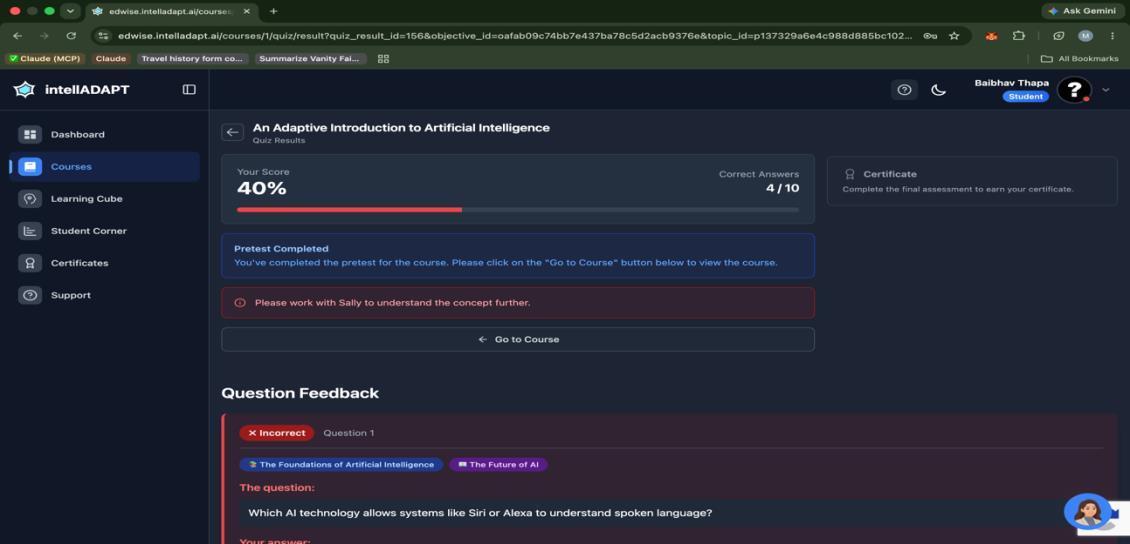
Explore Student Corner, choose a course, and begin with the pre-test.
Courses menu
Open Courses
Learning strategy test introduction
Start the strategy test
Learning strategy questions
Answer the questions
Student Corner features
Student Corner
Course selection
Select a course
Course detail screen
Review course details
Course pre-test option
Choose the pre-test
Pre-test dialog
Confirm and begin
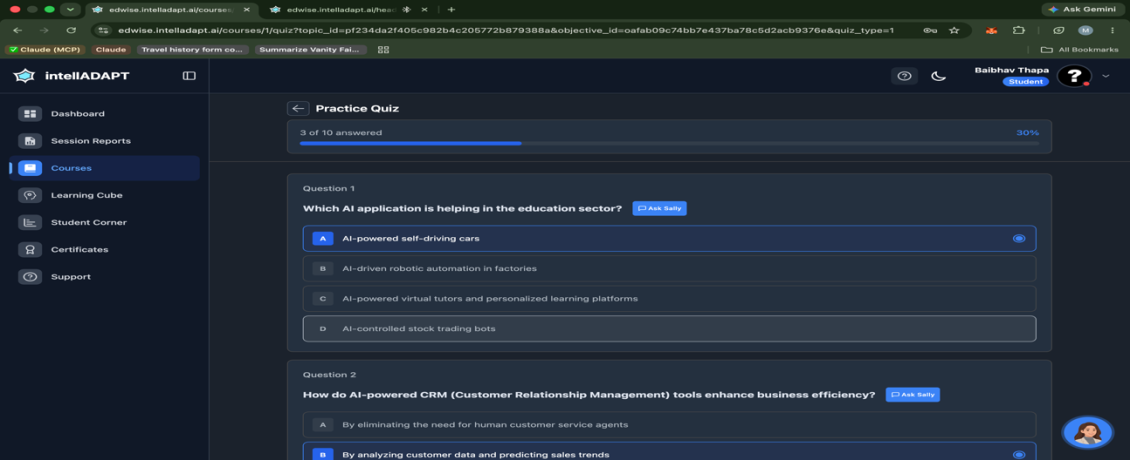
Pre-test question
Complete the pre-test
04

Device setup

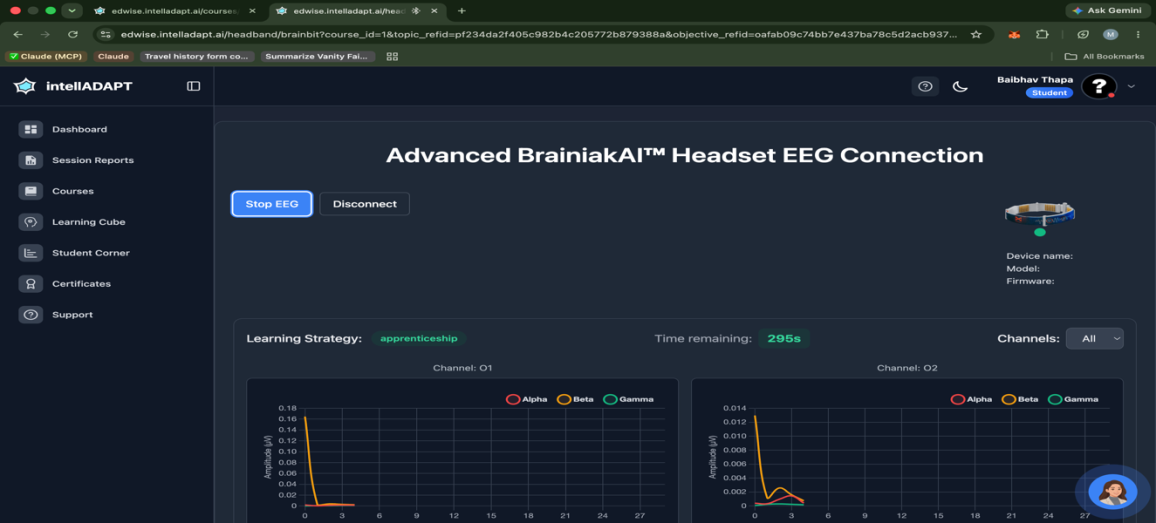
Connect the Brainiak headband

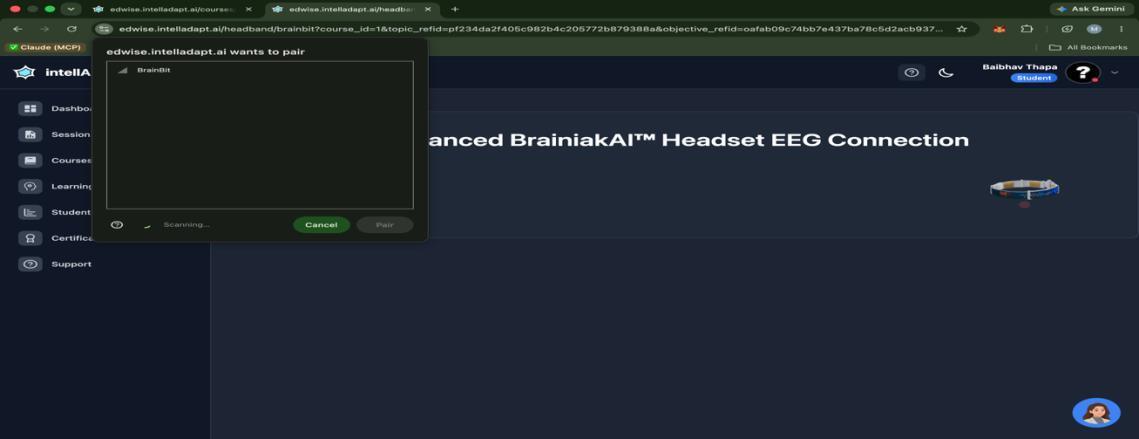
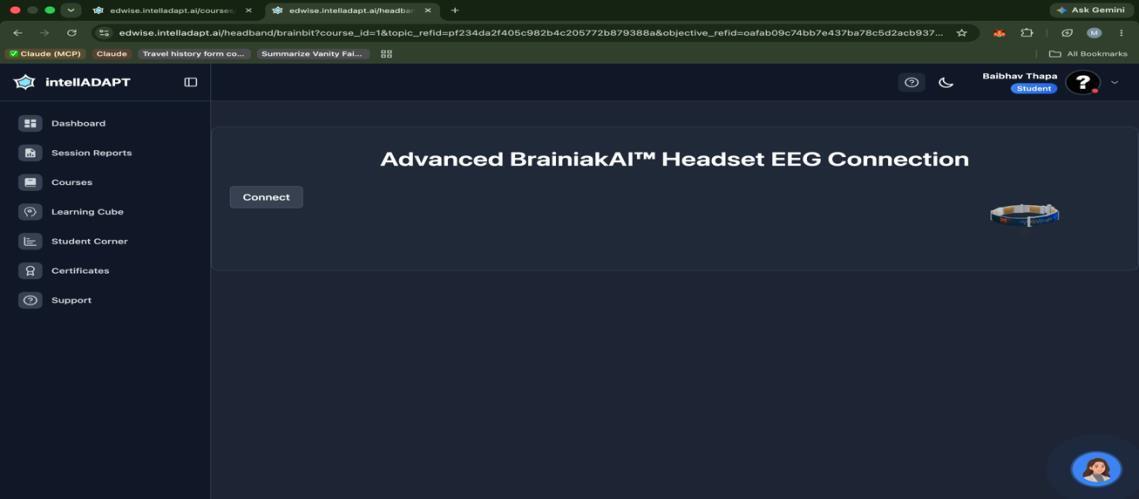
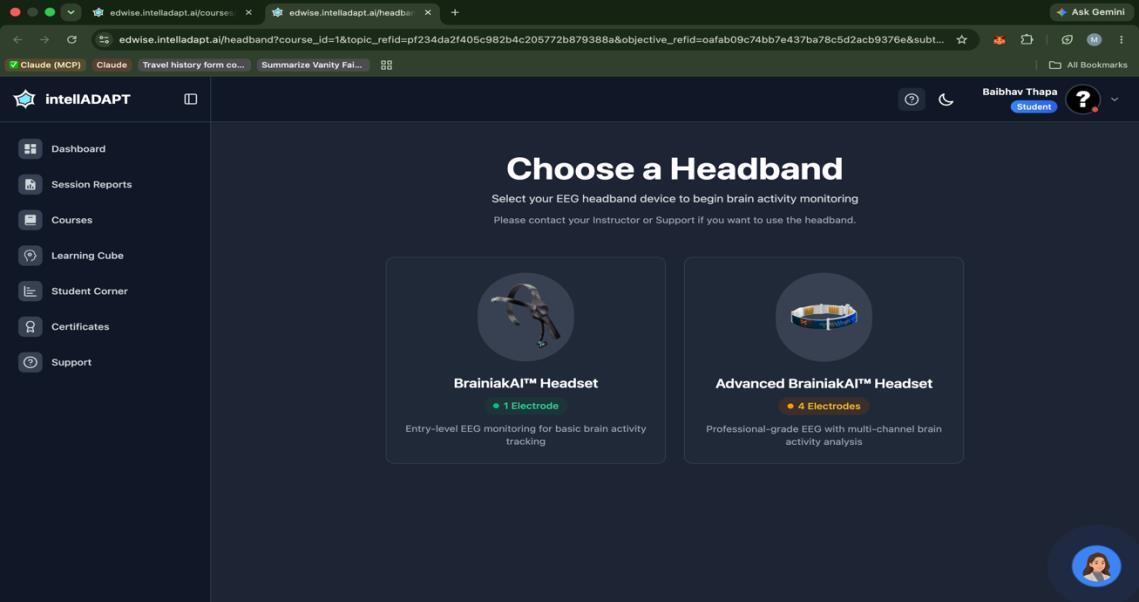
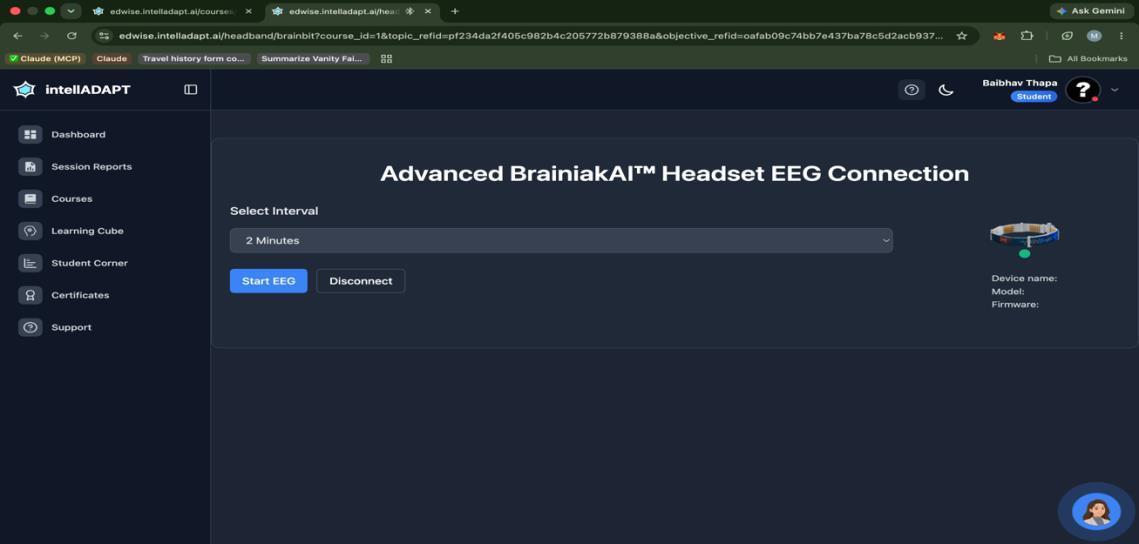
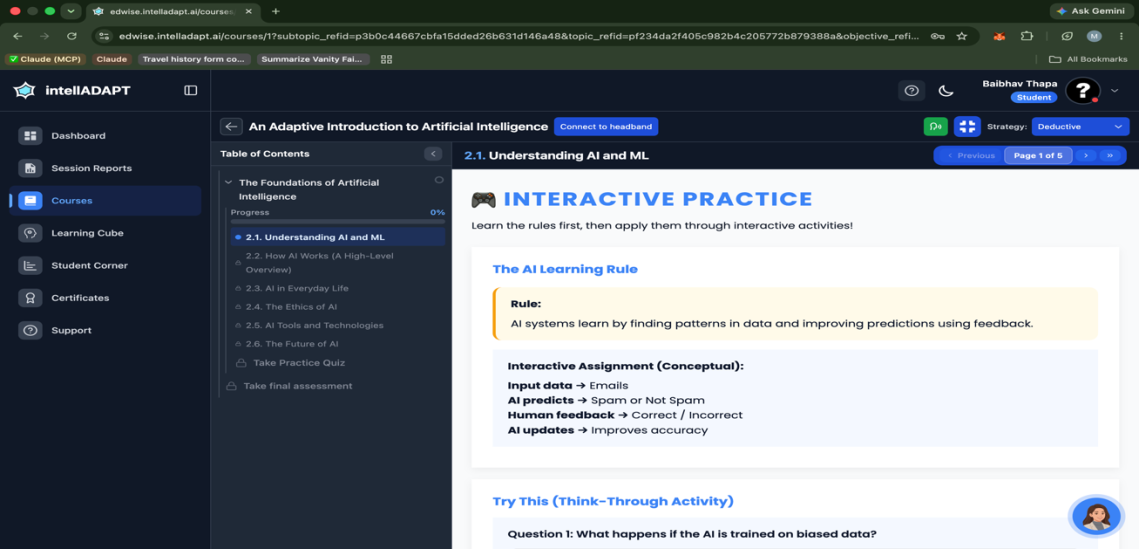
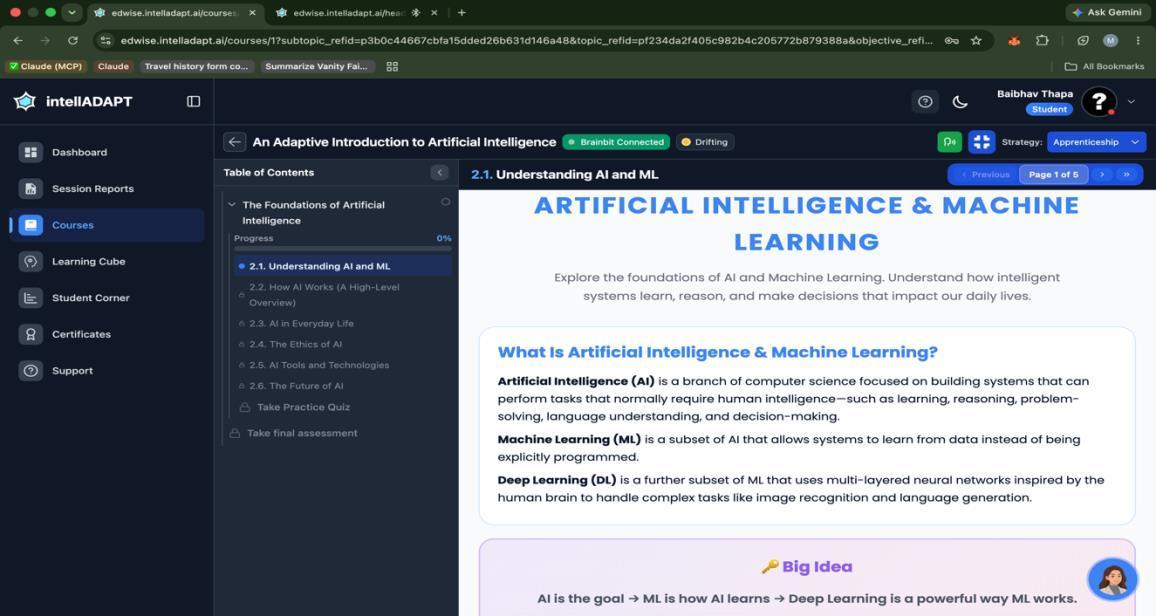
Open the course you want to continue, then select Connect to Headband. Follow the connection prompts, choose the available device, and confirm the connection before starting the learning session.
Power onCharge and switch on the headband.
Pair deviceSelect the detected headband.
ConfirmWait for the connected status.
Selected course
Continue the course
Connect to Headband button
Select Connect to Headband
Headband pairing prompt
Choose your device
Device permission prompt
Allow access
Headband connection instructions
Follow setup instructions
Connected headband status
Confirm connection
05

Learning insights

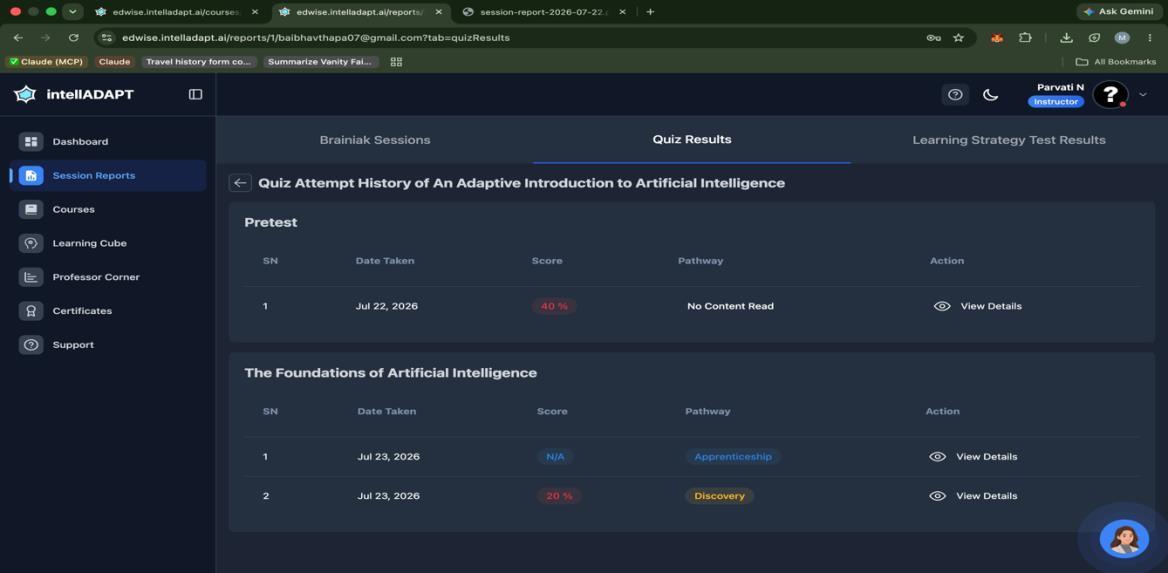
View session reports and detailed results

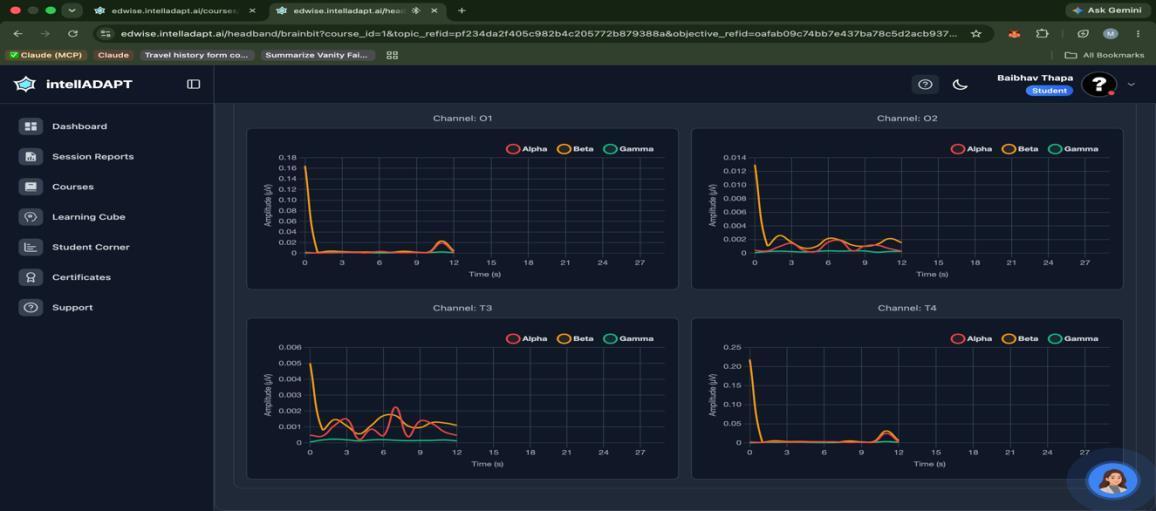
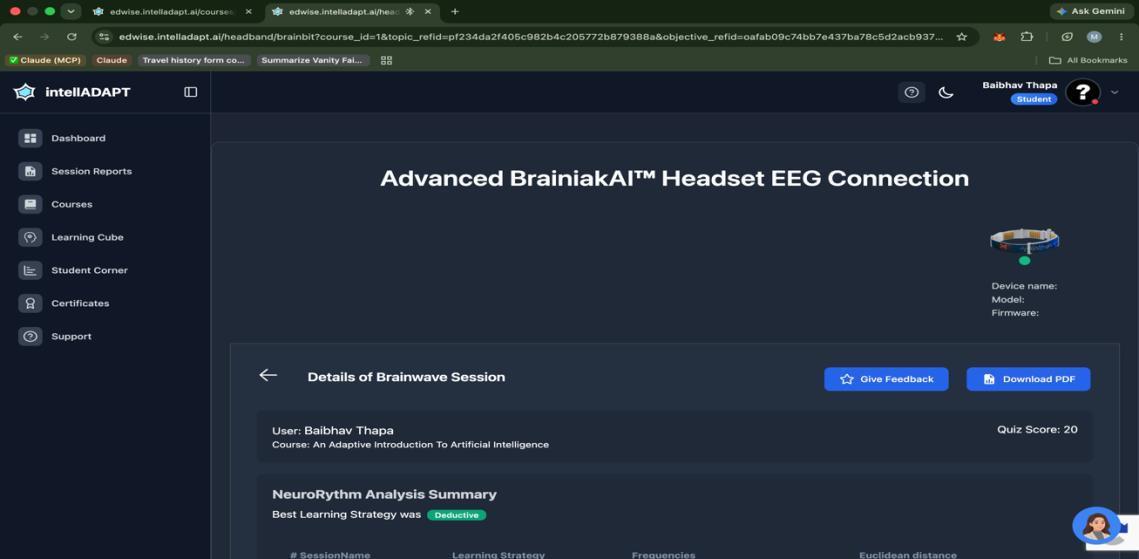
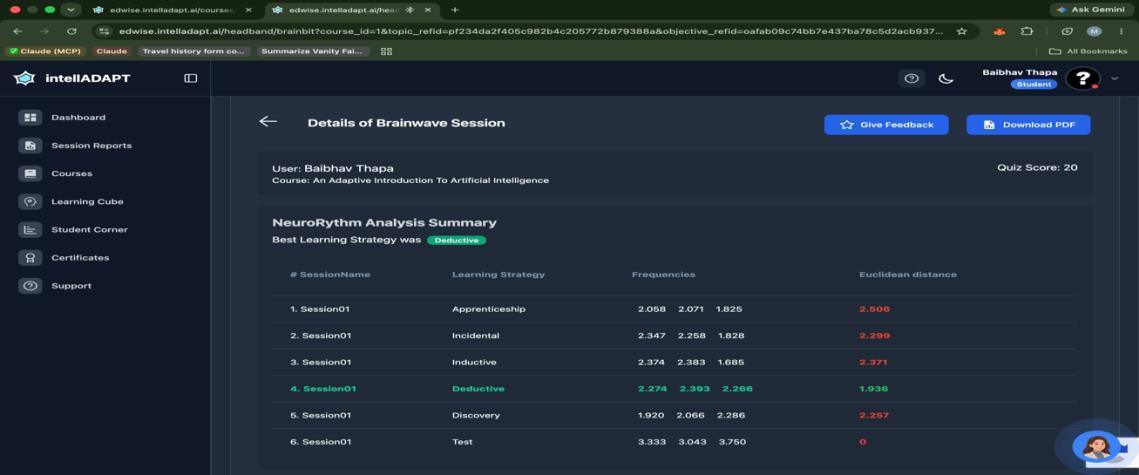
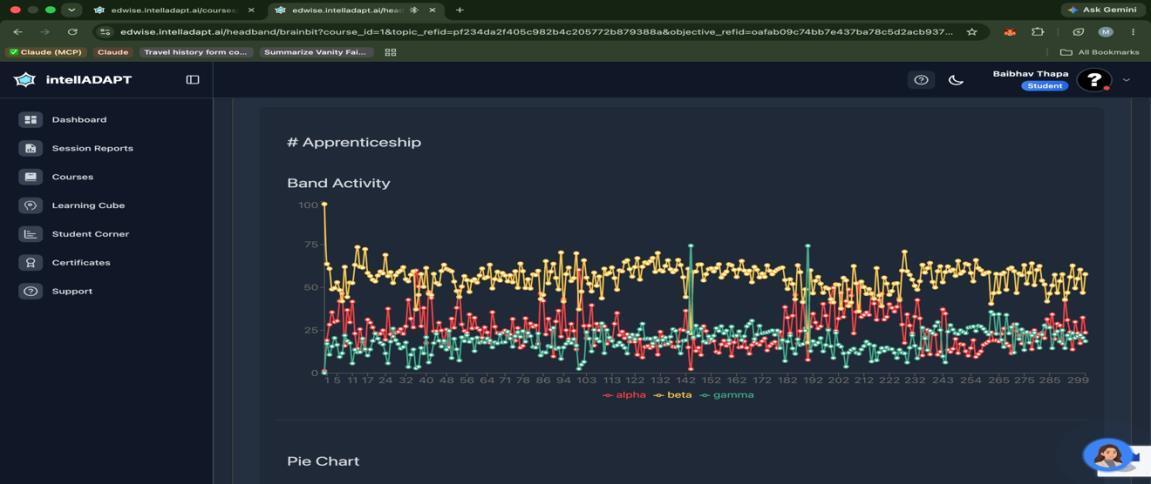
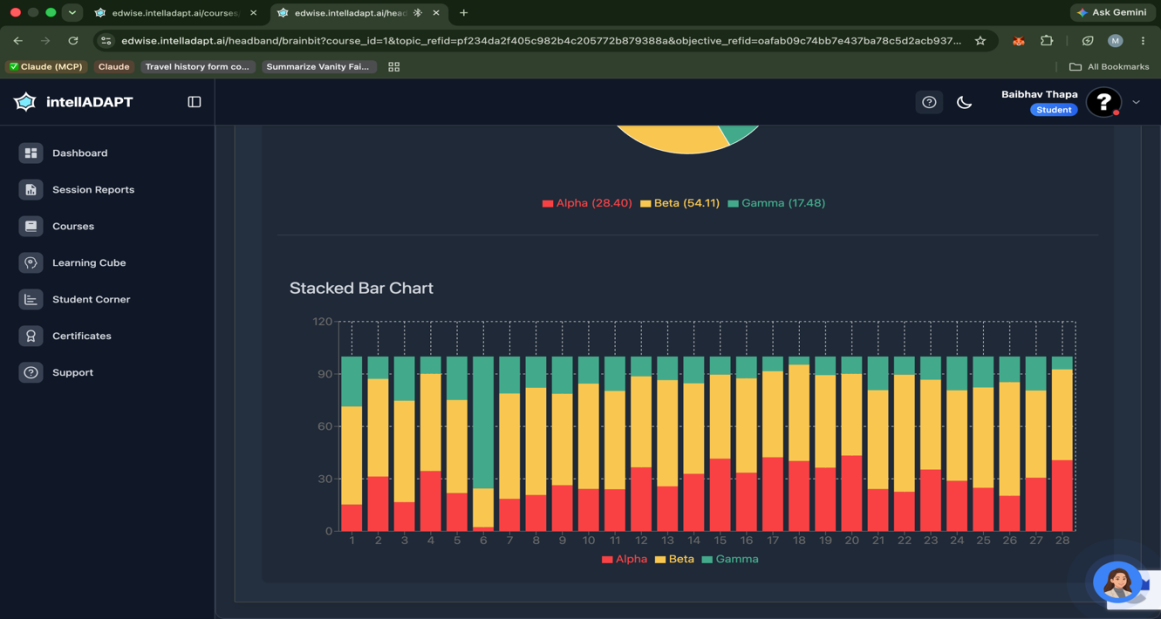
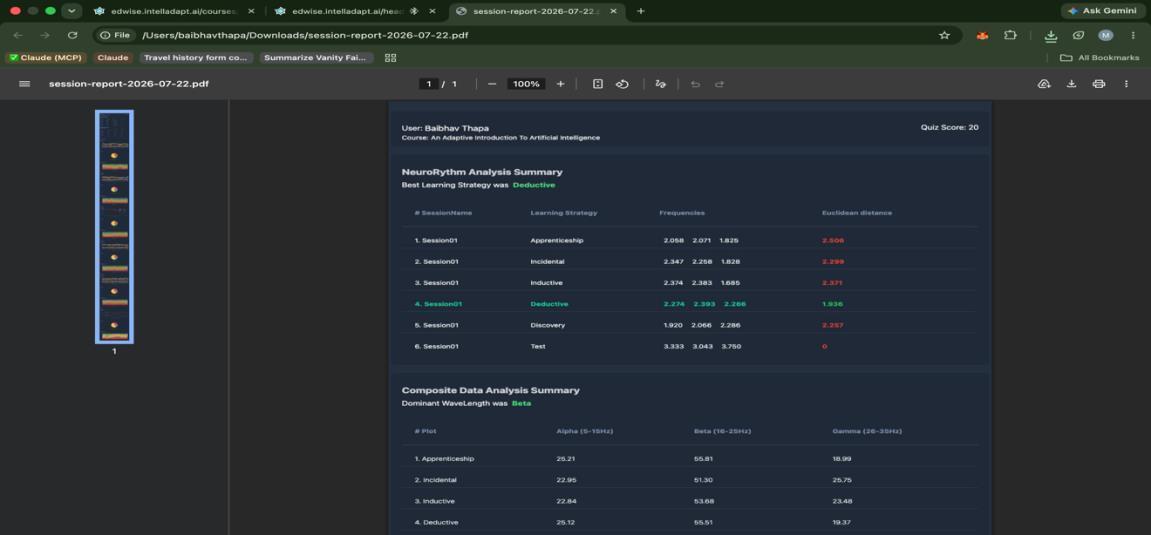
After a session, open the report to review course progress, assessment outcomes, and Brainiak visualizations. Use the detailed view to inspect changes across the session.
Completed session
Open a completed session
Session report dashboard
Review summary metrics
Session report charts
Explore charts
Course result details
Review results
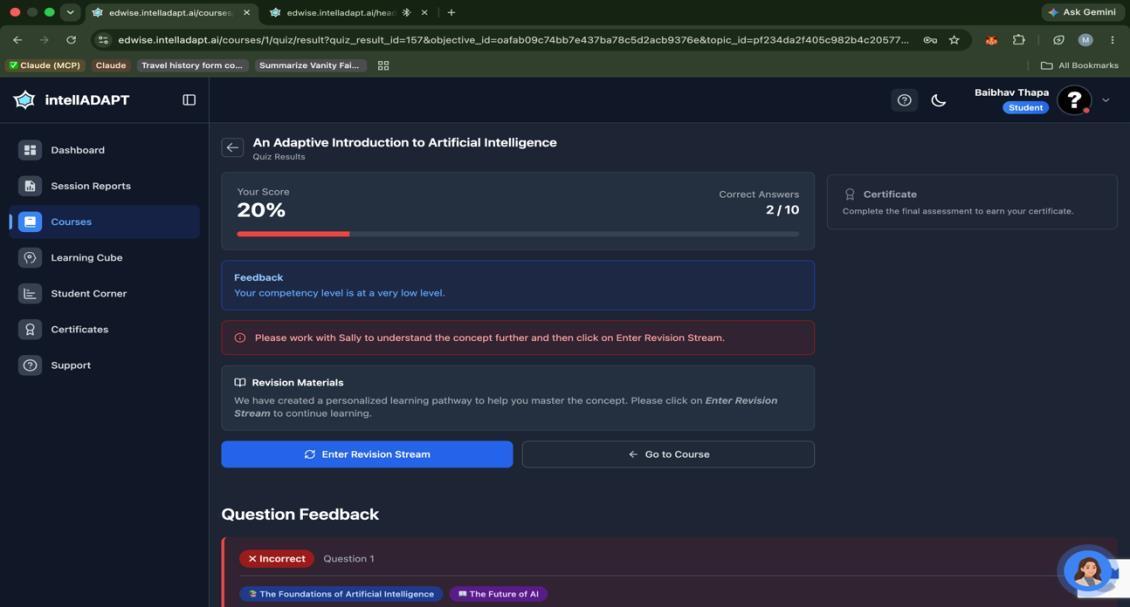
Assessment response review
Inspect responses
Learning content review
Review learning content
Detailed report option
Open detailed report
Detailed session metrics
Compare session metrics
Brainiak session signal chart
Inspect signal detail
06

Targeted review

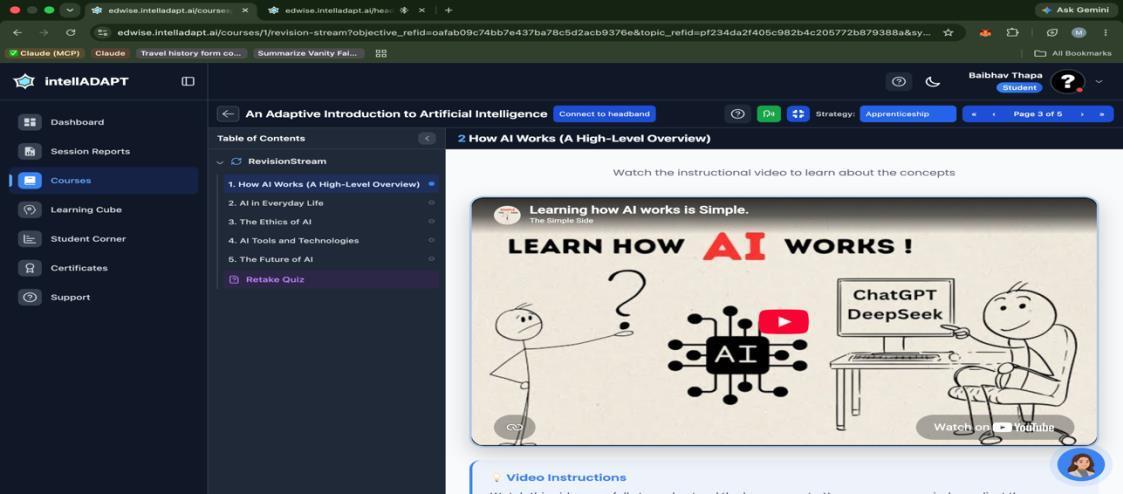
Master topics with Revision Stream

After viewing your results, open Revision Stream to revisit weak topics and continue practicing. Let your session results guide what you review next.

Return to course steps
07

Instructor Corner

Use class and student visualizations

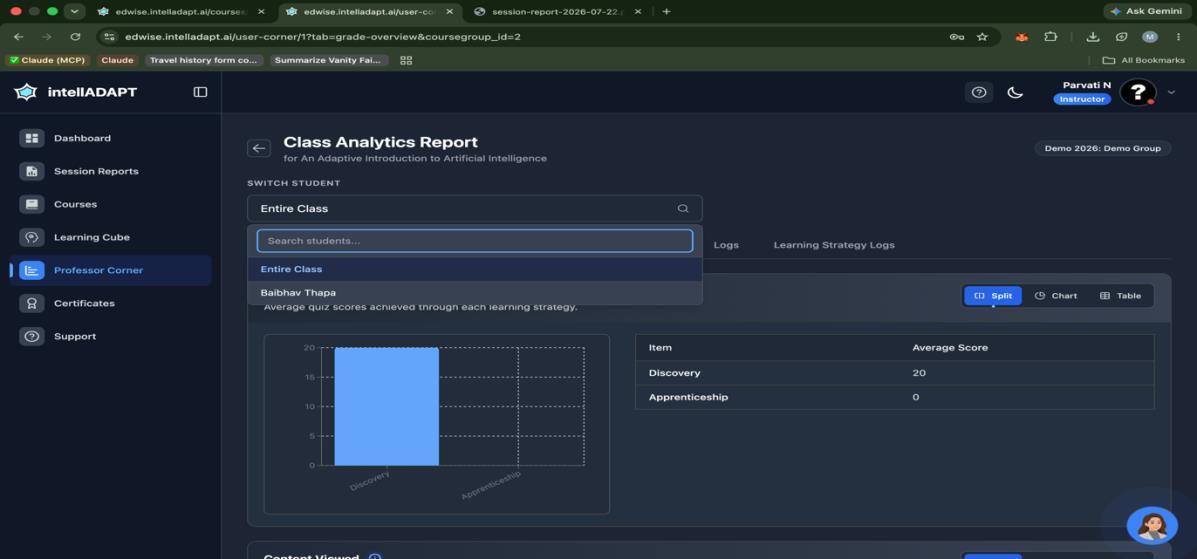
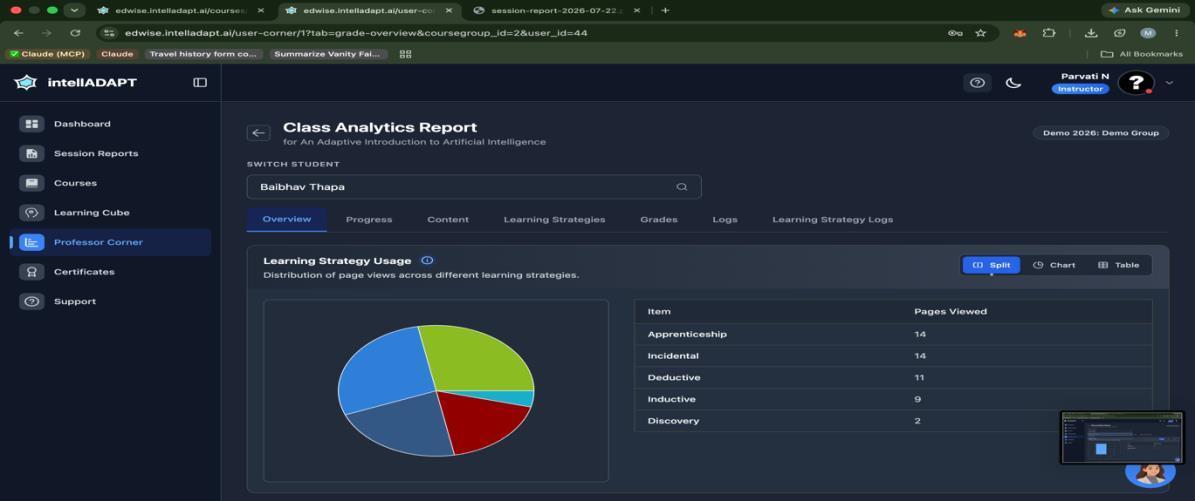
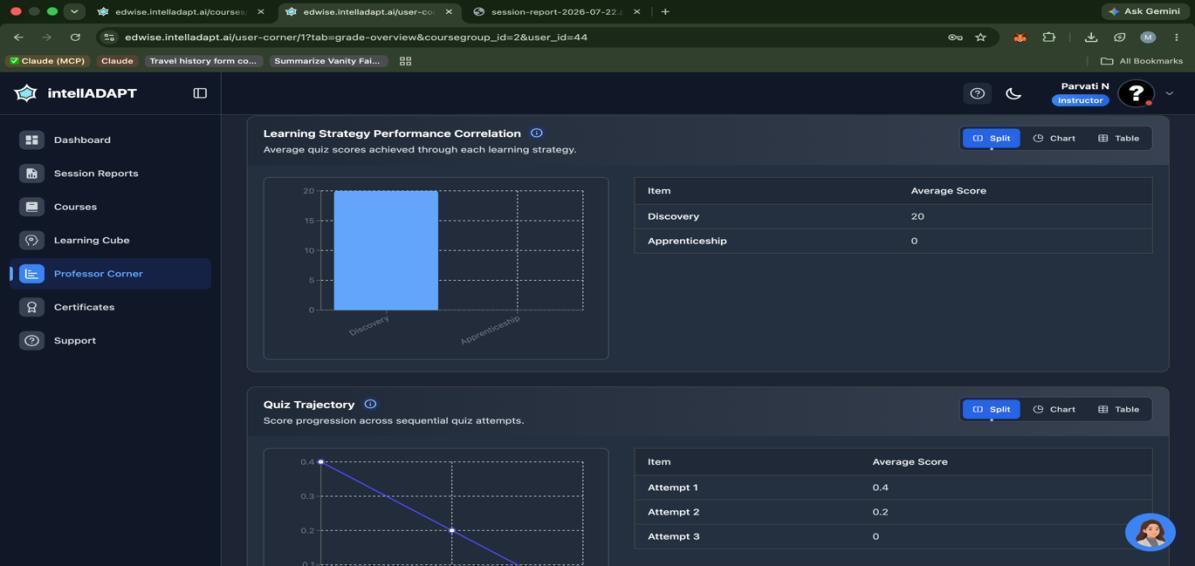
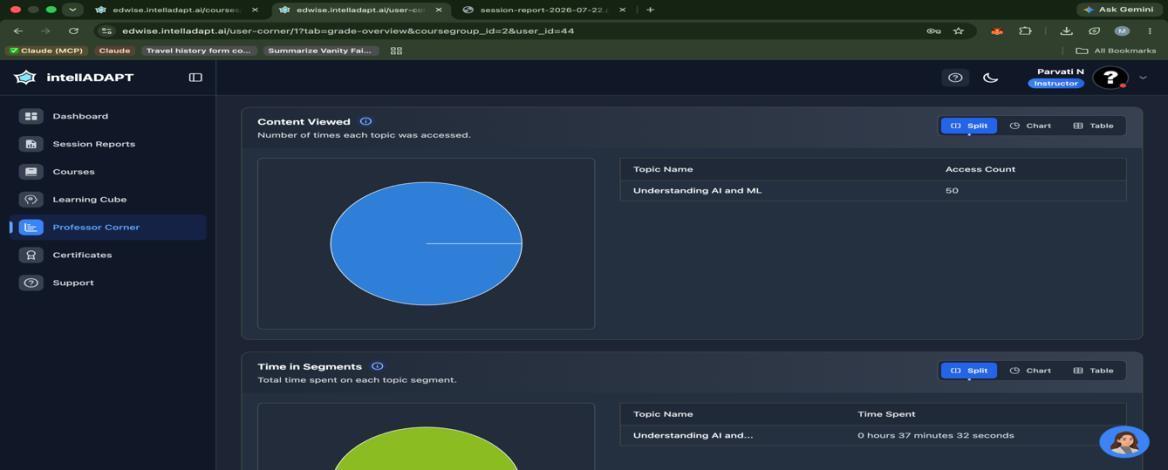
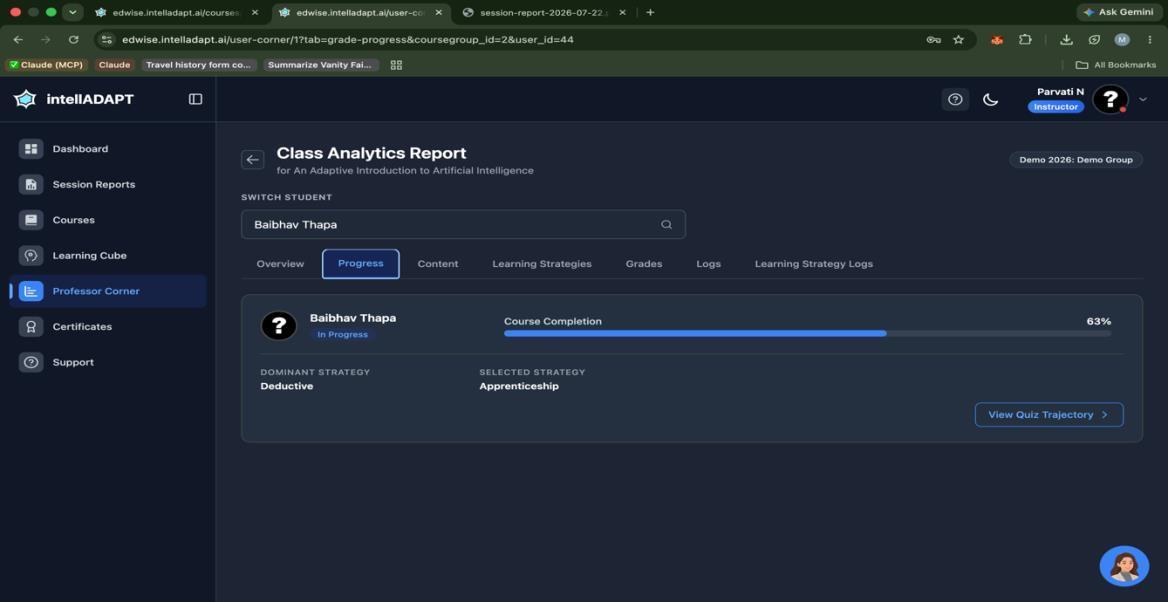
Instructor Corner provides visual summaries for learner engagement, sessions, class performance, and course progress. Use filters and detail views to move from class-level patterns to individual student data.
Instructor visualization dashboard
View engagement patterns
Instructor session table
Review session records
Instructor filter controls
Apply filters
Class bar chart
Compare class activity
Class distribution chart
View distributions
Student bar chart
Open student detail
Student performance chart
Compare student metrics
Course and assessment table
Review course results
Instructor course overview
Track course progress
08

Quick fixes

Troubleshooting checks

Cannot sign in

Confirm the EdWise URL, check your credentials, and use your profile to update the password after signing in.

Headband not found

Charge and power on the device, enable Brainiak mode, allow browser device access, and retry the connection from the course.

Course unavailable

Complete the Learning Strategy Test first, then return to Courses in Student Corner.

Report not visible

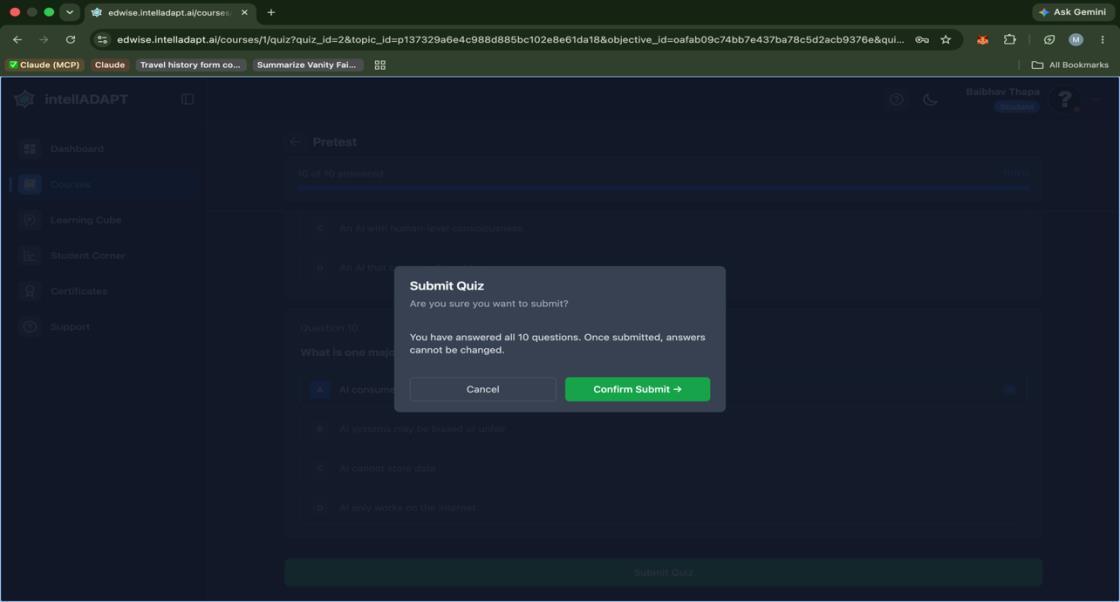
Finish and submit the session, then reopen the completed course session to view its report.

Ready to continue learning?

Open EdWise, choose your course, and use this guide whenever you need help.

Go to EdWise